CraftStation
Your model. Your harness. Your agent.
Agent Runtime Composition System
Native power by default. Model × Harness customization by choice.
中文 · Download · Apache 2.0
HernanJIANG
Native by default. Personalized by you. CraftStation defaults to a model's native Harness to bring out its full capabilities, preserving the official runtime's agent loop, context management, and tools. It also respects your preferences: customize Model × Harness around your task, workflow, and preferred runtime, then save the combination as a reusable Recipe.
Models, Harnesses, accounts, MCP servers, and Skills live in one desktop workspace. Start with Auto, or select your own Recipe and put your chosen combination to work across projects.
Inspired by Minecraft's crafting system, CraftStation turns composition into an executable workflow: select Items, form a Recipe, let the Crafter compile a plan, and spawn an Entity that works inside a continuous Session. The Harness is the runtime that drives the agent: its execution loop, context, and tools.
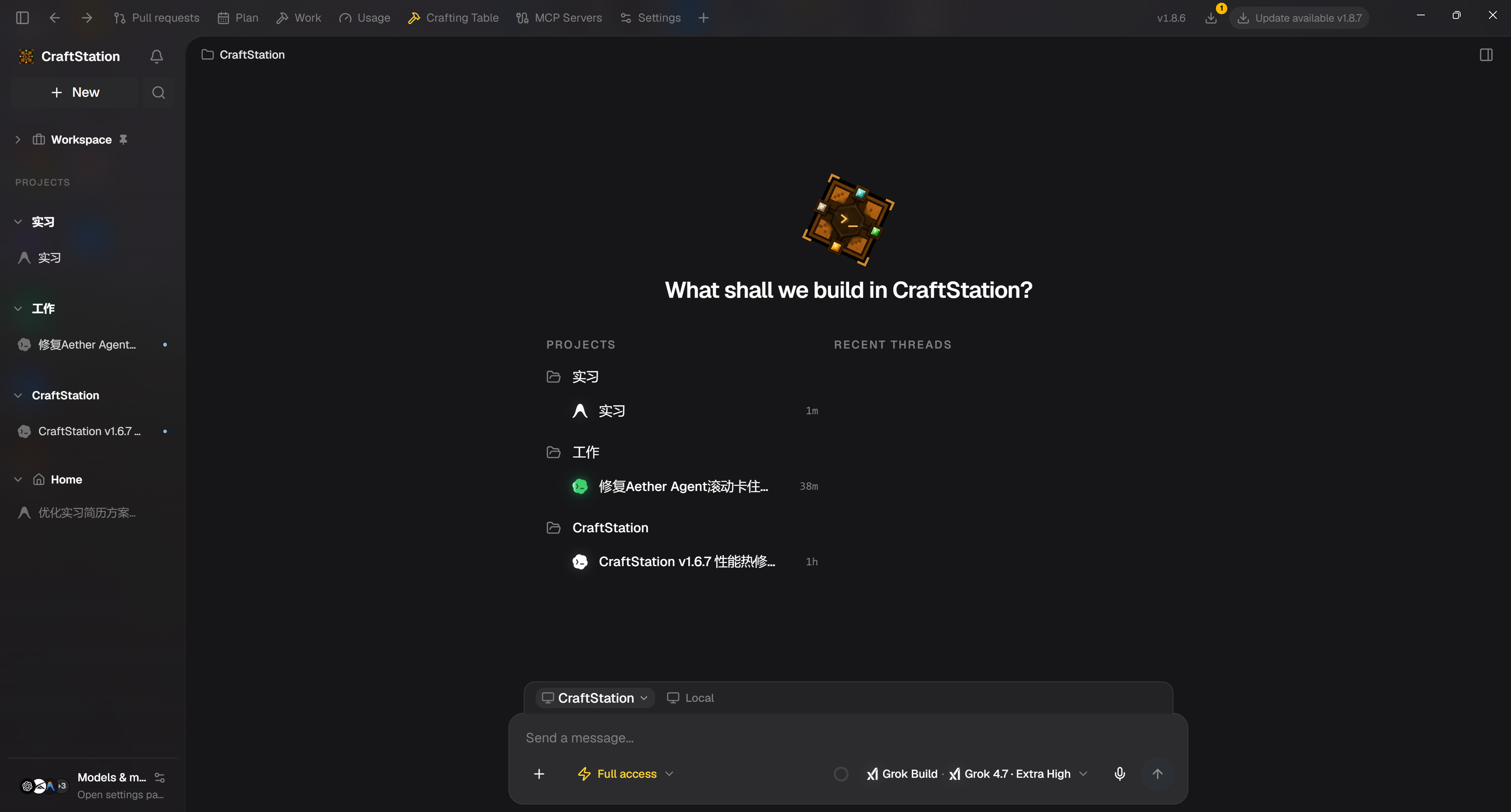
Your projects, recent threads, environment, permissions, and agent selection—all within reach when you start a task.
What makes CraftStation different
One model menu, a whole workspace of agents
Choose from models across Codex, Grok Build, Kimi Code, Antigravity, OpenCode, Devin, Step Code, and other integrated Harnesses. Saved Recipes appear alongside models, so a combination you crafted becomes an everyday choice in the same composer.
Stay in your project while switching agents, following their output, and inspecting tool activity. Your workspace stays familiar as you choose the runtime that suits the task.
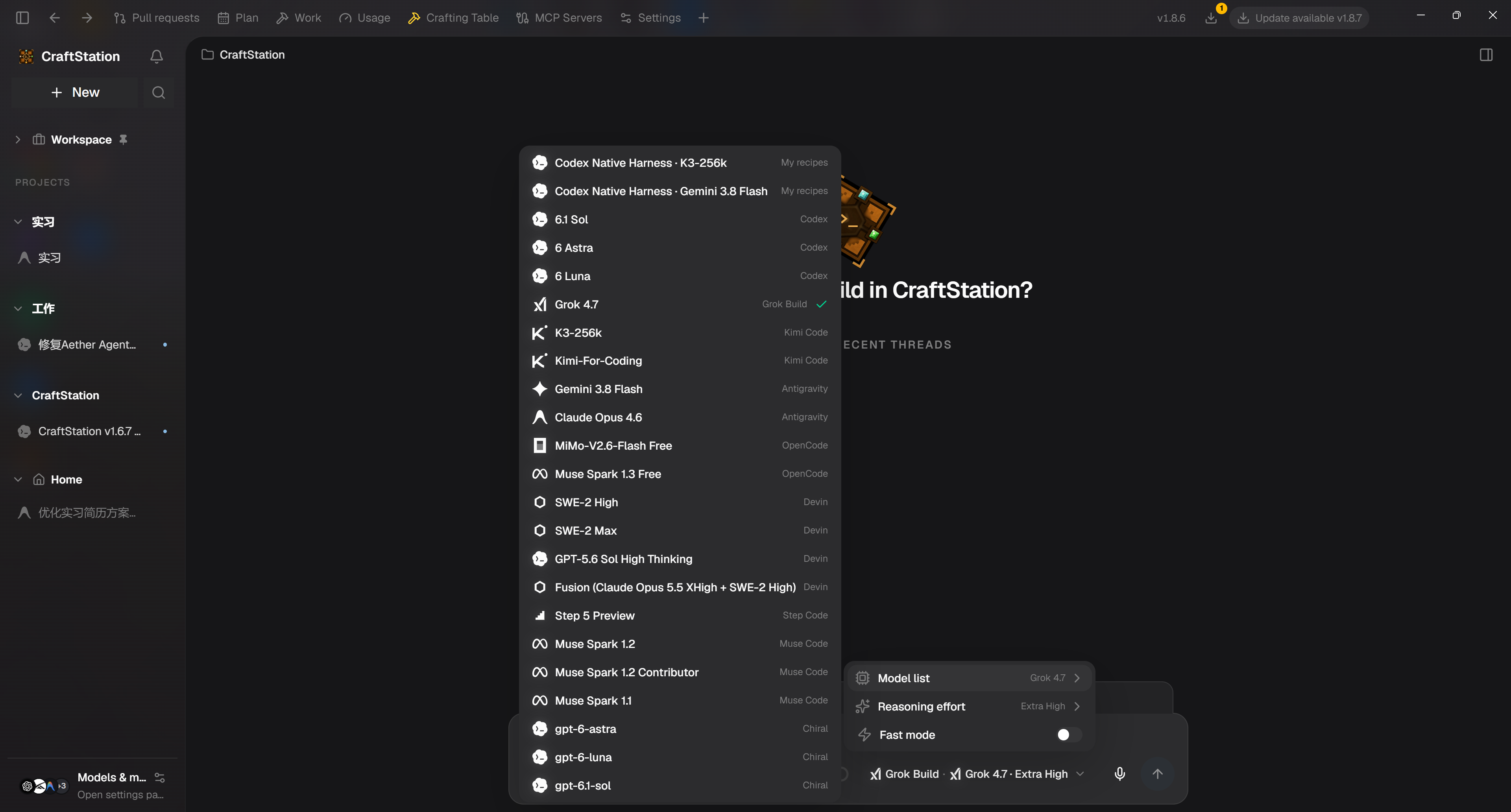
Native models and your own Recipes share one entry point. The menu shows the Harness behind each choice.
Unlock the potential of your own Model × Harness combination
The workbench makes Model × Harness composition visible. Pick your ingredients, inspect compatibility, and save a craftable result as a Recipe. The inventory beside the grid shows available MCP servers and Skills, with shortcuts to manage them.
The screenshots show Recipes such as Gemini 3.8 Flash × Codex Native Harness and K3-256k × Codex Native Harness. Supported cross-vendor combinations use a compatibility bridge where needed; CLIProxyAPI handles provider/API compatibility while the selected Harness continues to run the agent.
Choose the model you trust and the Harness whose tools and workflow you prefer. Save a useful combination once, then select it from the home model menu when you need it again.
The Harness is part of the result. Artificial Analysis's Coding Agent Index compares specific model, Harness, and settings combinations. Use those configurations as a reference for your tasks, then make the combination your own. The workbench below shows personalized Recipes; the Harness overview in the next section shows the default native paths.
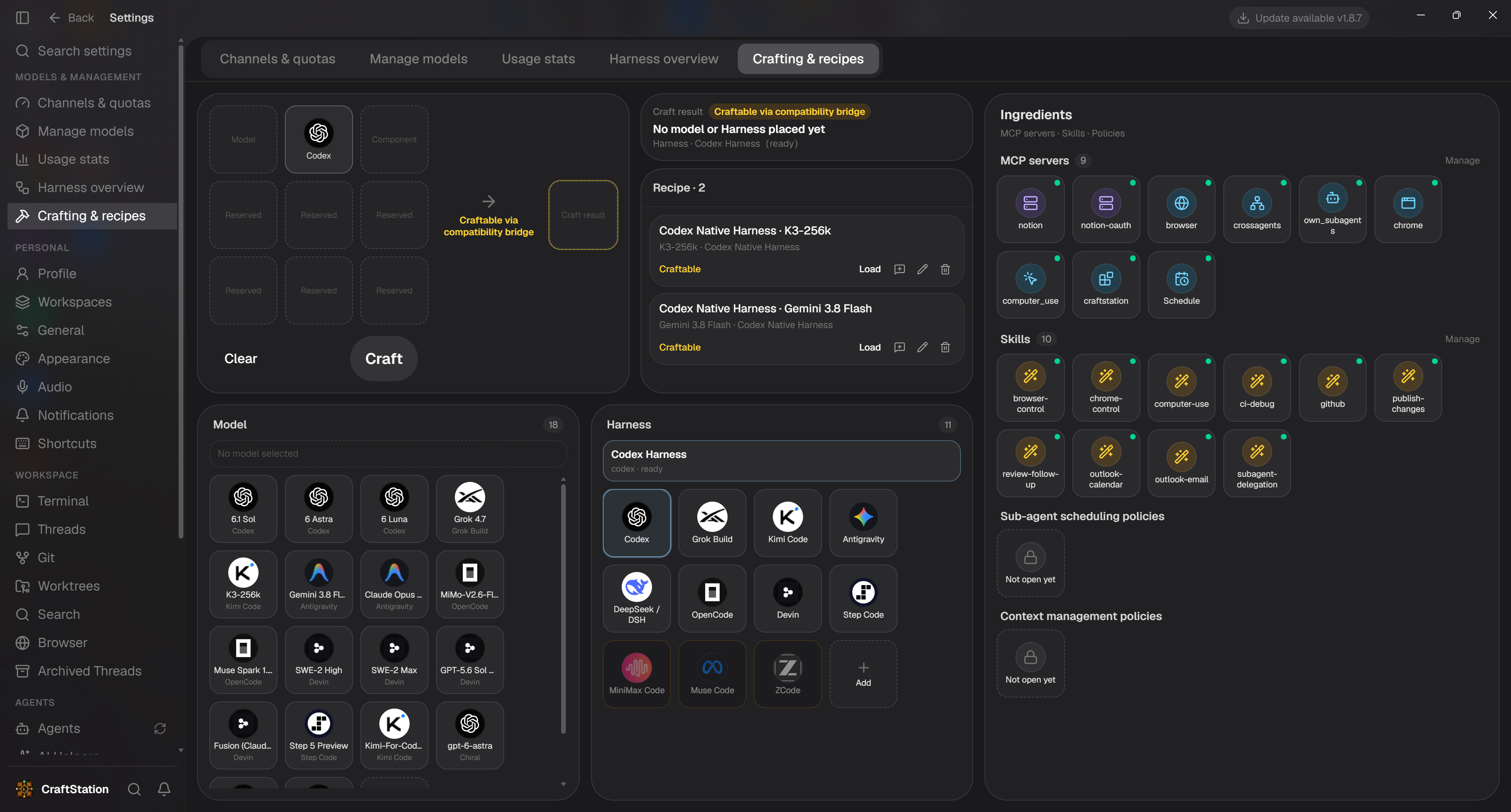
Your Recipe: choose the Model × Harness combination, inspect compatibility, and save it for everyday use.
Native Harnesses by default, with the execution path in view
The Harness overview connects Channel → Model → Final Harness / CLI. See where a model comes from, which runtime executes it, and whether that runtime is ready or still needs installation.
Auto follows the model's default native path—for example, GPT → Codex, Kimi → Kimi Code, and Gemini → Antigravity. The official runtime retains ownership of its agent loop, context management, tool execution, MCP, and Skills. An explicit Recipe lets you choose a supported composition yourself.
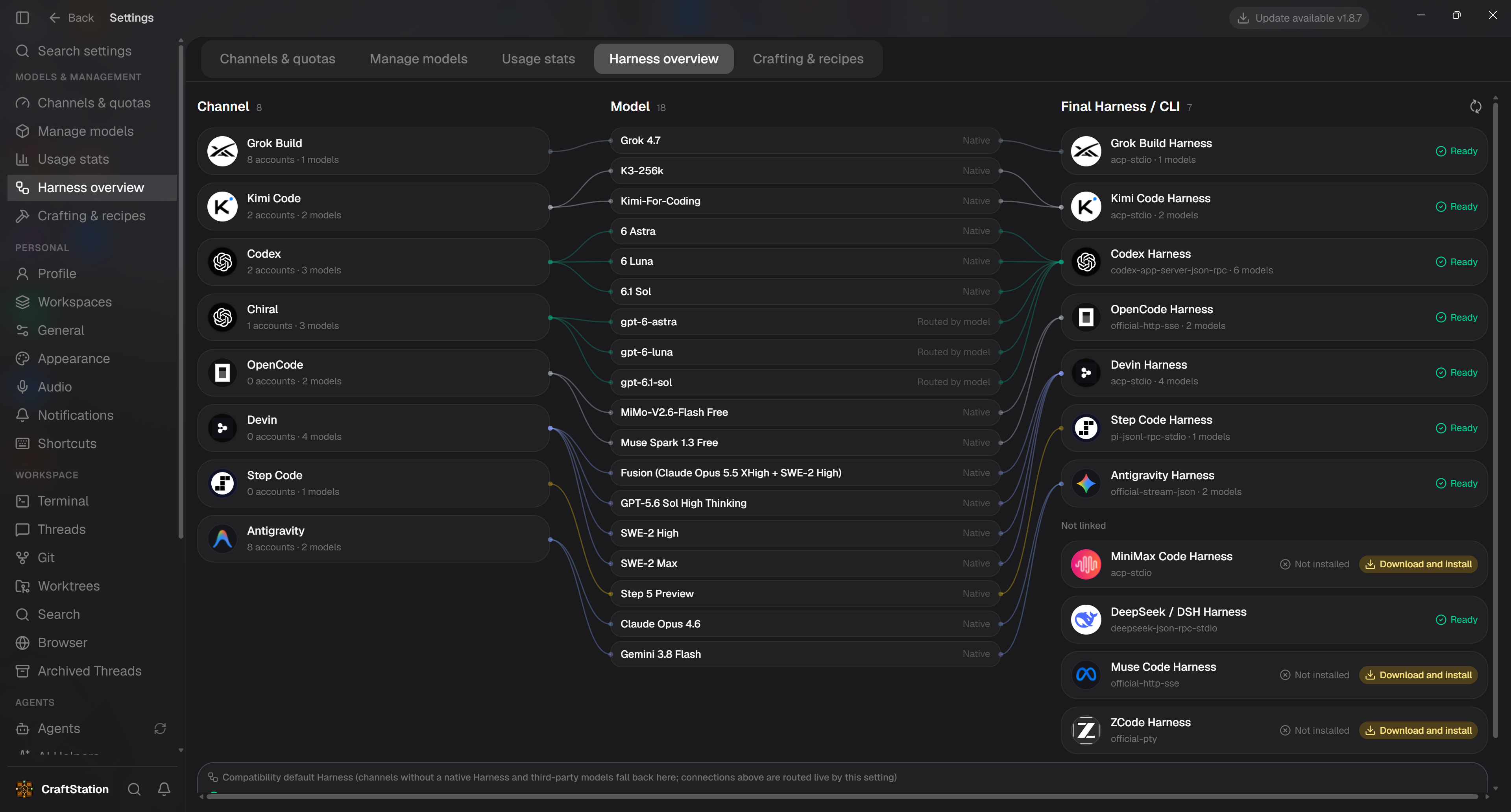
Follow the connections from account channel to model to execution runtime, and see availability in the same view.
Put your accounts and quotas to work
Manage multiple accounts in supported provider pools, including Grok, Kimi Code, and ChatGPT. View session or weekly usage, reset times, account priorities, and enable/disable controls together.
New sessions follow the pool's scheduling rules. Order accounts by priority, and let pool failover select another eligible account when quota or availability prevents the current one from continuing. You can see which accounts still have capacity before starting the next task.
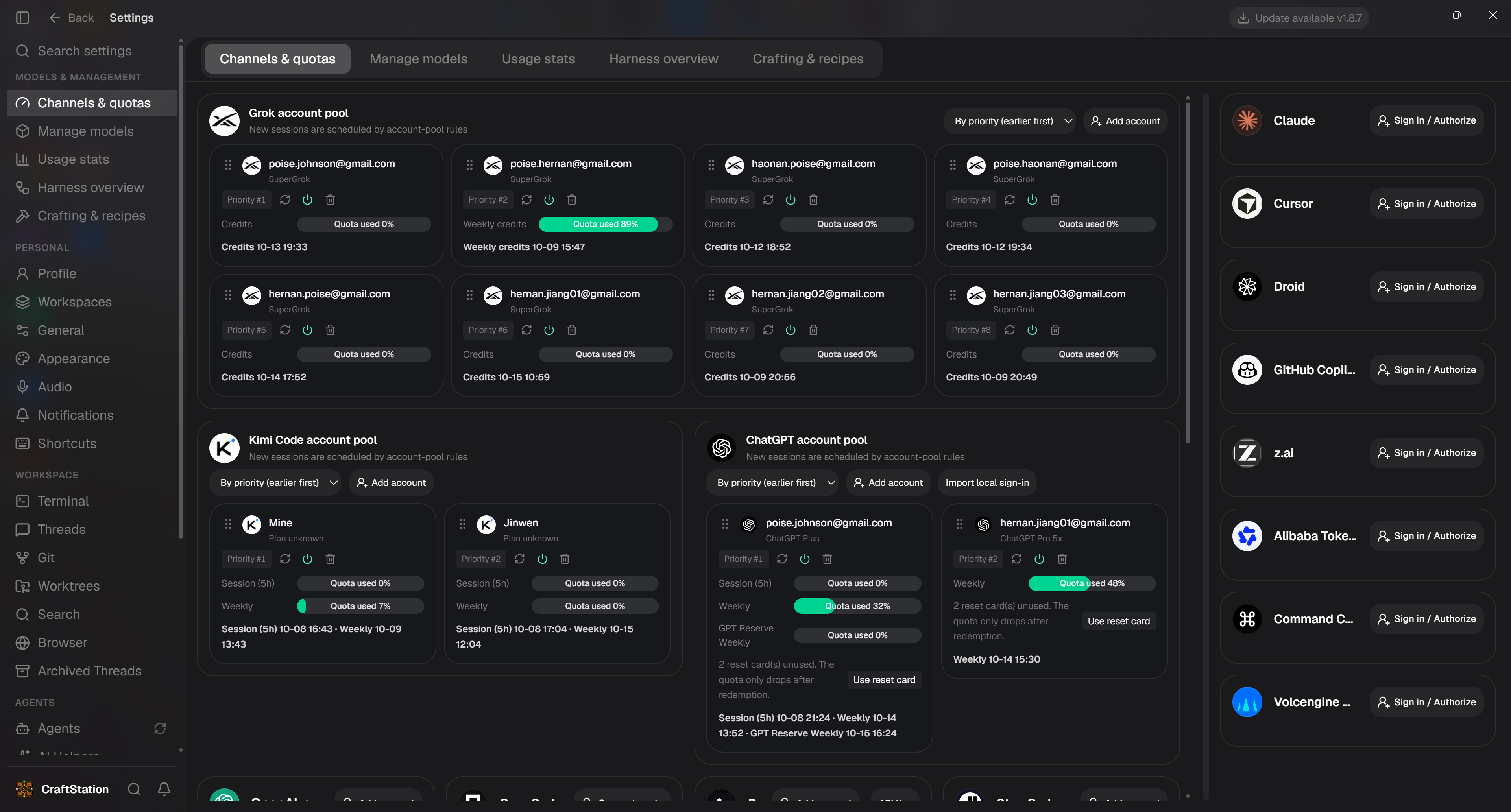
Multiple accounts, visible capacity, and clear priorities—managed from one Channels & quotas page.
Tools that keep work moving
- Cross-thread collaboration: agents can hand tasks to other Sessions or create a new one through built-in MCP tools.
- Schedule: wake a thread at a scheduled time or interval to continue working.
- Browser and Computer Use: give compatible Harnesses browser tools and Windows desktop actions, including clicks, typing, and screenshots.
- Skills, MCP, and Git / worktrees: manage capabilities and project workflows from the same desktop, with project bindings and compatible tool injection.
- CLI updates: check and update installed CLIs from the titlebar. Automatic updates can be controlled in Settings → Agents → General → Auto-update CLIs; managed account-profile copies are updated too.
Get started
- Choose the Windows x64 installer (
CraftStation-Setup-…-x64.exe) or portable build (CraftStation-Portable-…-x64.exe). Run the installer for a regular installation, or double-click the portable executable. - Open CraftStation and connect your accounts. Agent CLIs use their official tools and your existing subscriptions; install or authorize the Harnesses you want to use.
- Open a project, select a model with Auto or a saved Recipe, and send your first task.
The Windows package includes the desktop runtime and the CLIProxyAPI compatibility sidecar. No separate Electron or Node.js setup is required to run the packaged app. Available platforms and artifacts are listed on each release page.
License
Apache License 2.0. Copyright HernanJIANG.