FLUJO
Build private AI agents visually. Run them your way.
Connect your AIs and apps, build an agent, then talk to it, automate it, or call it from other software.
Simple + visual builders · MCP-native connections · Multi-model · Built-in debugger · Automation
Install FLUJO ↓ · Explore features ↓ · Watch the walkthrough → · Website → · Online demo →


FLUJO is an open-source, local-first AI workspace. Save your model and app connections once, build reusable agents as plain-language steps or visual flows, and inspect what happens when they run. Combine models, tools and other agents; branch, loop and hand off work; use the same setup in chat, background automations and external applications.
Your workspace is stored on your computer. Cloud models and connected services receive the requests you send them. Privacy and workspace controls.

Connect your AI, create an agent, then use it. Walkthrough screenshots show real FLUJO 3.46.2 screens; select an image to view it at full size.
FLUJO feels complicated, you're missing a feature, or you're stuck? Join Discord or open a GitHub issue. We can only improve if we know what's wrong.
AI Setup · Connected Apps · Agent Builder · Talk & debugging · Automations · Meetings · Personas · Integrations · Project vision
Quick install
The installers set up FLUJO and useful tool runtimes such as Git, Node.js, Python, uv and ripgrep. They download dependencies and need an internet connection.
Windows installer: Download the latest flujo-setup.exe.
Windows PowerShell:
irm https://raw.githubusercontent.com/mario-andreschak/FLUJO/main/scripts/install.ps1 | iex
Linux / macOS:
curl -fsSL https://raw.githubusercontent.com/mario-andreschak/FLUJO/main/scripts/install.sh | bash
Already have Node.js 22.17+ within 22.x, or 24.2+ within 24.x? Run the published package:
npx flujo-ai@latest
Open localhost:4200 and keep the FLUJO server running. Some connected tools need additional runtimes or credentials. Shell installers follow the development branch by default; check the release notes for a Windows installer's version and channel.
All installation choices · Windows · Linux/macOS · npm · Docker · Build from source
Key features
AI Setup
- Choose your provider: OpenAI, Azure OpenAI, Anthropic, Google Gemini, X.ai, OpenRouter, supported subscription connections, or local models through Ollama.
- Guided or expert setup: use a gentle walkthrough, a faster guided path or the complete configuration form. Test the saved connection before using it.
- Subscription and CLI options: Claude Subscription uses the Claude Agent SDK; Codex and the bundled Antigravity CLI have their own login and host requirements. Provider access and allowance still apply.
- Reuse and organize: keep connections in folders, mark favorites and select different models for different AI steps.
- Fallback policies: try ordered backup connections for selected limits or outages, before output or tool activity begins.

Model connections and supported logins · Model settings · Fallback behavior
Connected Apps (MCP)
Give agents access to files, browsers, APIs and other services through the Model Context Protocol.
- Connect your way: curated apps, the MCP Registry, a remote URL, a GitHub repository or a local command. AI-assisted setup can help configure the connection.
- More than tools: browse tools, resources and reusable prompts; configure roots and opt-in model sampling where supported.
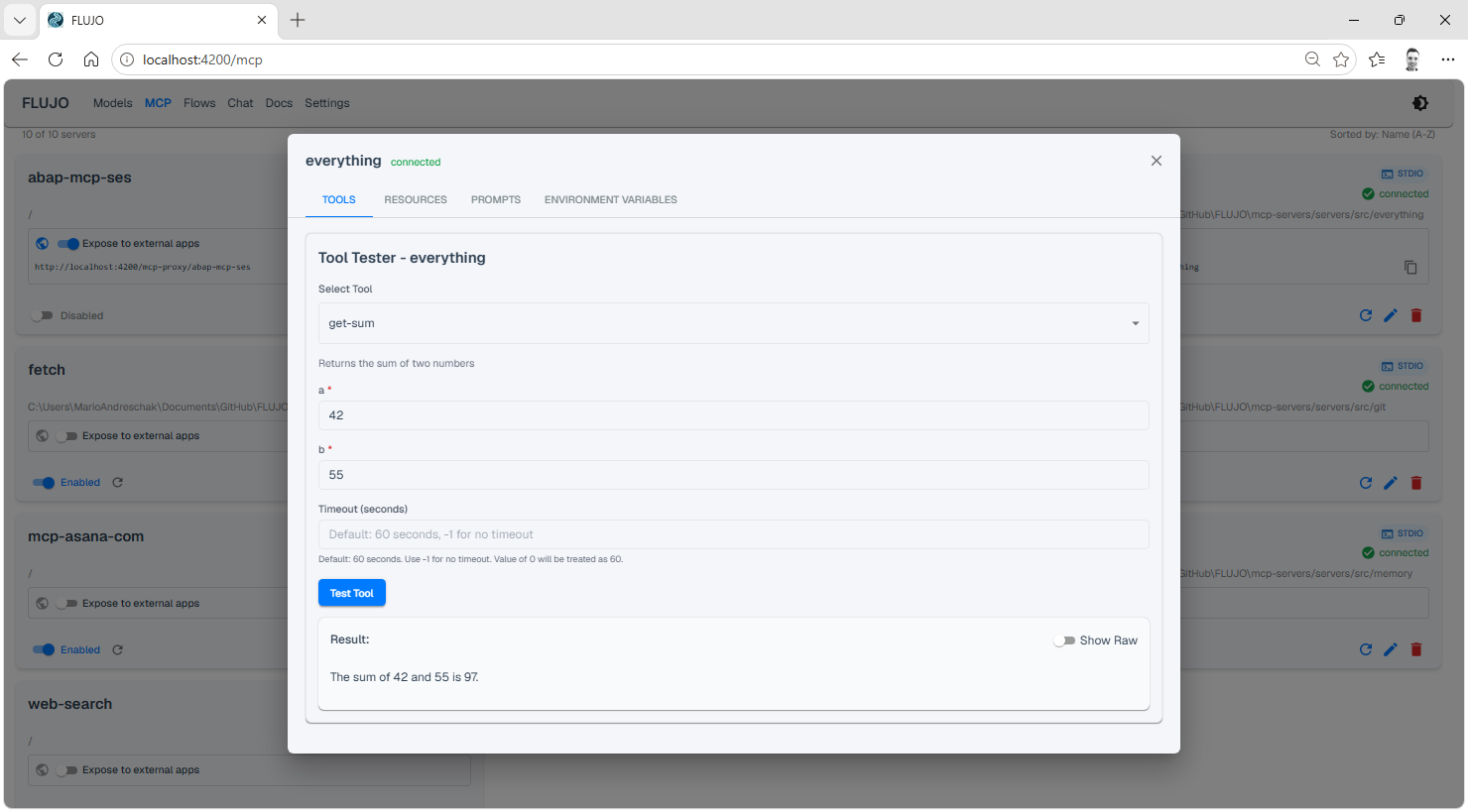
- Inspect before attaching: call tools and inspect resources from the connected server's detail view. A saved connection and a successful operation are separate checks.
- Interactive MCP Apps: compatible tools can return an interface inside chat. Enable Apps for the connection; support depends on the server's declared capabilities.
- Reuse outside FLUJO: explicitly expose a configured server through FLUJO's local MCP proxy for another compatible client.

GitHub setup and the tool inspector
Import a repository, install and build its server, configure its run command, then test and save the connection.

The tool inspector lets you browse and call a connected server's capabilities directly:
Connected Apps guide · GitHub setup · Interactive Apps and limits
Agent Builder
Start simple, then add the structure your task needs.
- Easy mode: build an agent like a recipe, one plain-language step at a time.
- Expert visual mode: connect Start, AI, connected-app, Static, Subflow and Finish nodes in a graph.
- Branching and handoff: let a model choose the next specialist or path based on the conversation.
- Loops: return to an earlier step for another pass.
- Subflows: reuse another flow as a step, with configurable input context and output handling.
- Per-step scope: choose each AI step's model, instructions, tools and resources. Review AI-generated flows before running them.

Easy and Expert are views of the same agent. This recording uses a Website Builder as one example.

Branching, loops and orchestration
Connect one node to several successors, then describe when its handoff tools should choose each path. Connect a node back to an earlier step to create a loop. Combine these patterns to coordinate several specialists.
Handoff tools, loops and orchestration examples
Reusable subflows
Drop in a Subflow node to call another flow. Choose what context it receives and how its output appears in the parent run.

Node reference · Context and output modes
Talk and debugging
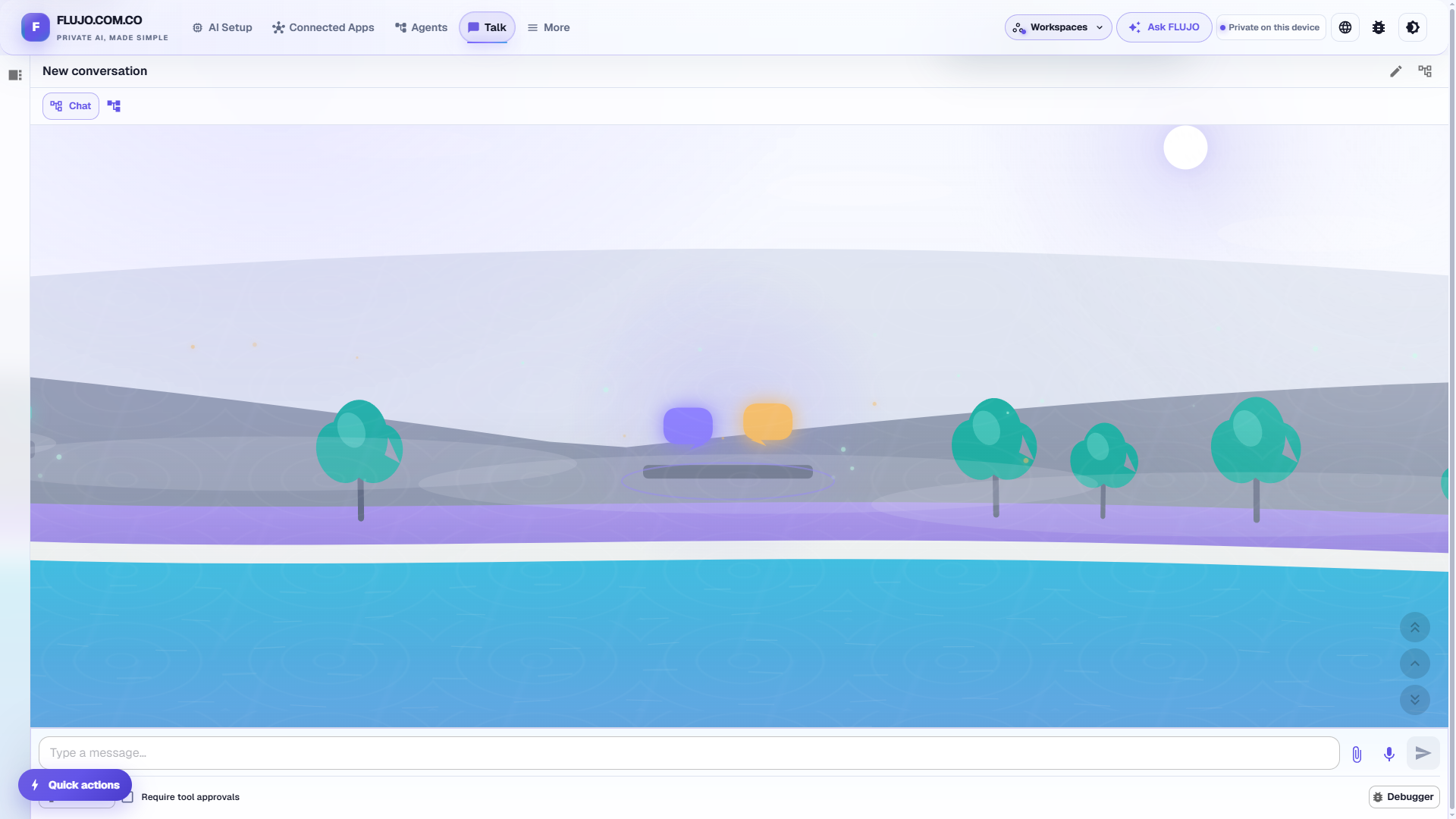
- One place for every agent: select a saved agent in Talk, then start or resume a conversation.
- Live execution view: follow steps and tool results, with model usage and a context-window meter.
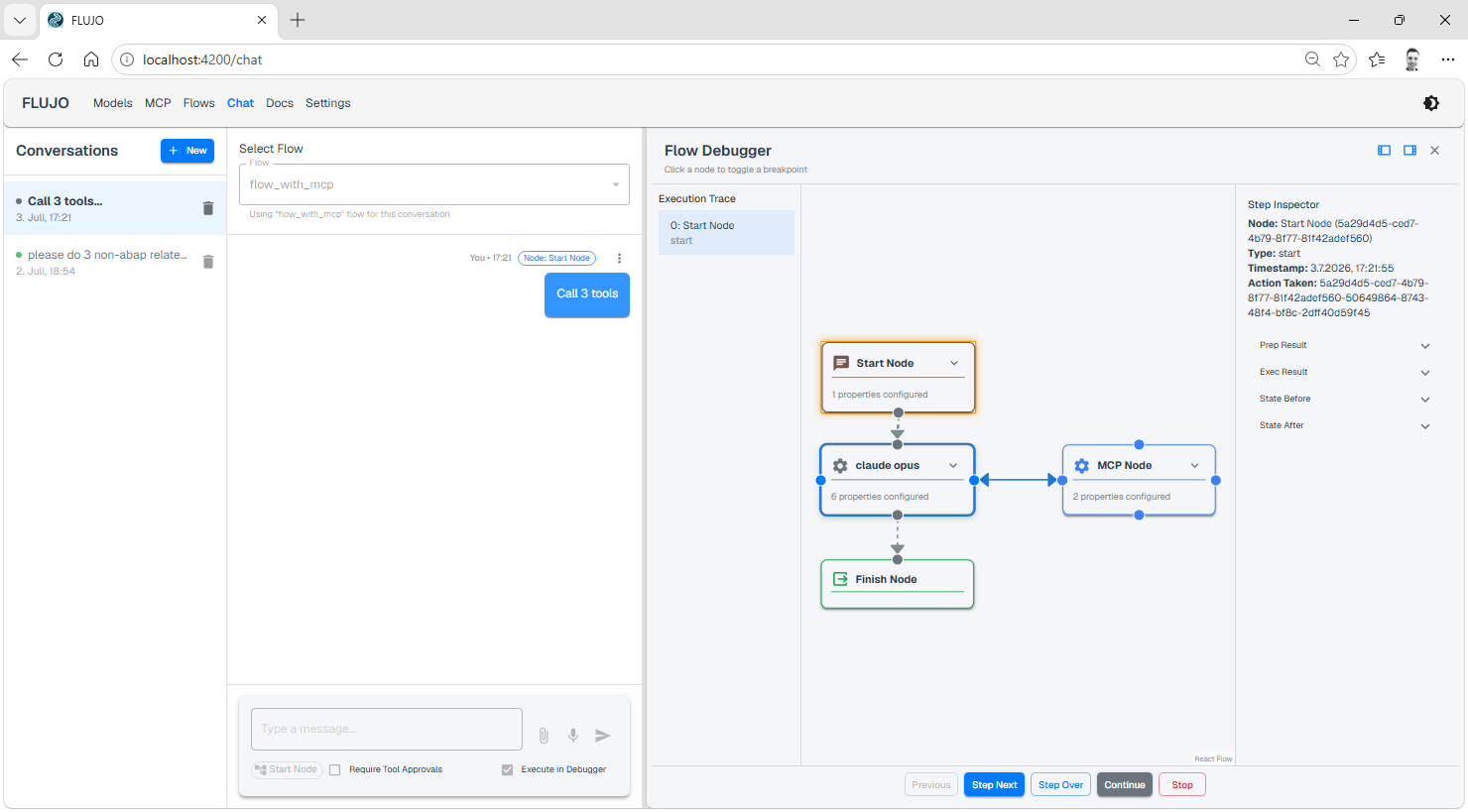
- Visual debugger: set breakpoints, step through nodes, and inspect state before and after execution.
- Optional tool approvals: review tool calls before they run. Approvals control actions; they do not sandbox local programs.
- Files, audio and revisions: attach supported files or audio, edit a message, or branch the conversation to try a different direction.
Run and debug agents · Chat commands and dynamic references
Automations
Run a saved agent on a schedule or when something happens. The FLUJO server must stay running; the browser tab can be closed.
| Trigger | Example |
|---|---|
| Schedule | Prepare a daily report or run on a custom cron schedule |
| Webhook | Start work from an authenticated call by another service |
| File changes | Process a file when it appears or changes in a watched folder |
| Watch a tool | Poll an MCP tool and react to changed results or new items |
| Website changes | React when fetched page content changes |
| Another flow finishes | Chain work after a flow completes or fails |

Choose what starts the work. Each saved trigger has its own run history and results.
Run history and the WhatsApp example

Combine a Watch a tool trigger with a WhatsApp MCP server to build an auto-responder. Its operation depends on the connected server, account access and agent configuration.
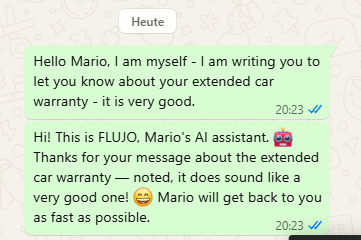
Failed tools, provider limits and approvals can need attention. Schedule catch-up can admit one missed occurrence; it does not replay every missed run. The Triggers page retains saved schedules during refresh errors and offers Try again. Pause changes wait for confirmation, failed deletions remain retryable, and stalled requests release the controls after 30 seconds.
Automation setup and recovery · Scheduled occurrence accounting
Meetings — experimental
Bring multiple agents into a shared conversation around a topic. Choose participants and facilitation in More → Meetings.

The walkthrough previews this setup without creating or running a meeting.
Earlier multi-agent meeting example
Personas and Roles — experimental
A Persona is an ongoing helper with a name, a Role, memories, conversations and goals. Review its work and memories, adjust its setup, and pause or stop ongoing goals. Enable experimental features in Settings to explore Personas.

Follow Maya's workshop example. Its three “days” are compressed demonstration sessions, with operator review and corrections; they do not establish unattended reliability over elapsed days.
Waves — experimental
See flows and their relationships in one place, or explore planned timing in the Day view. The overview is read-only; forecasts are distinct from execution results.

External tool integration
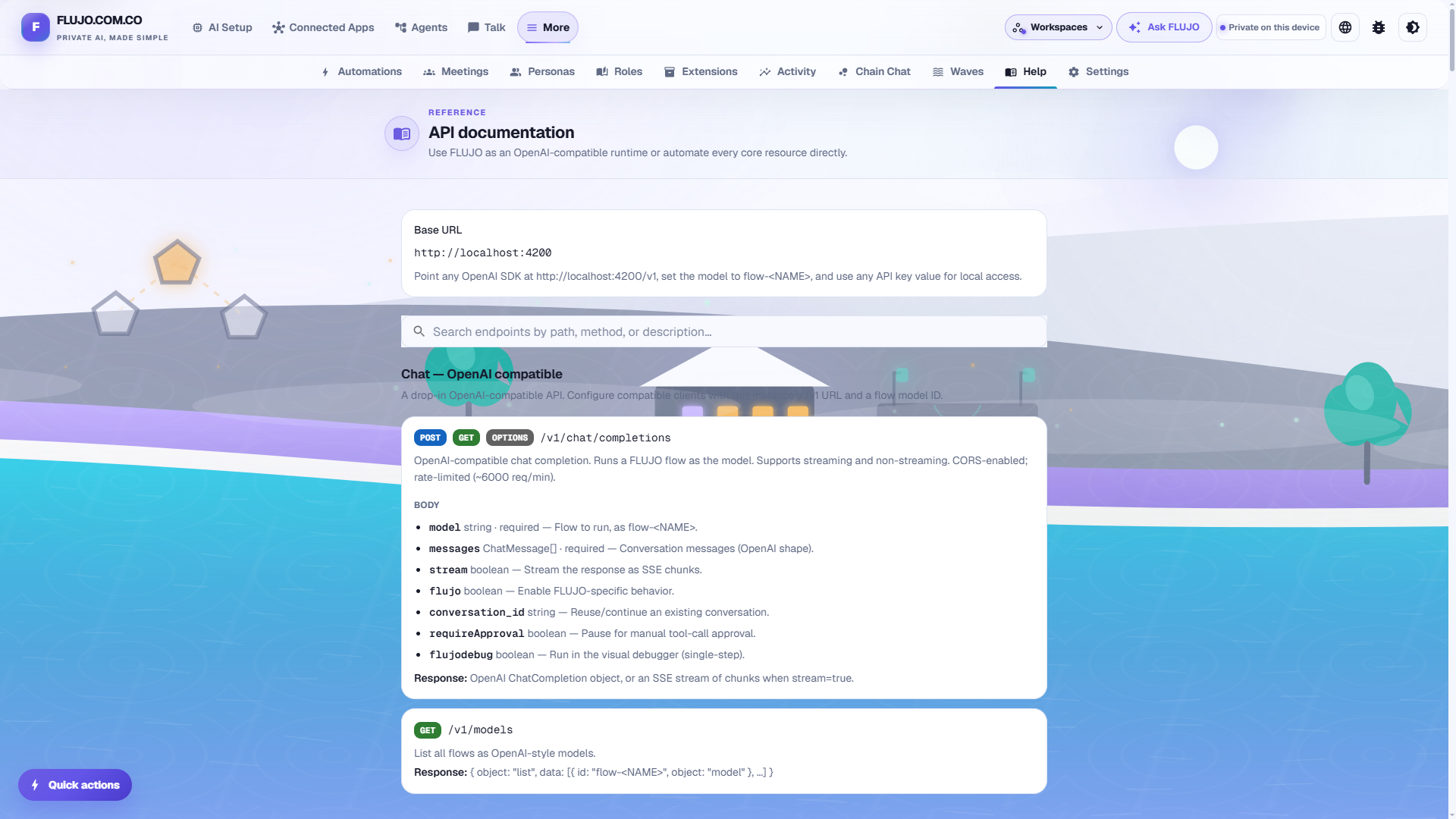
Reuse FLUJO from Cline, Roo Code, Cursor, an OpenAI SDK client or another compatible MCP client.
| Surface | Use |
|---|---|
http://localhost:4200/v1 |
Select a flow- model to run an agent through the OpenAI-compatible API |
http://localhost:4200/mcp-flows |
Access flows through FLUJO's MCP transport |
http://localhost:4200/mcp-proxy/ |
Reuse an explicitly exposed MCP server's tools and resources; the proxy is currently localhost-only |
The default local profile accepts a compatibility API-key value; that value is not authentication. An explicitly enabled owner policy requires an issued, scoped bearer. These interfaces have exposure and workspace-access rules; see the API reference.
FLUJO connects to Ollama as a model provider. It does not expose an Ollama-compatible server endpoint.
Built-in API documentation
Open /docs in the running app for searchable HTTP documentation with examples for chat, conversations, models, flows, MCP, automations and administration. The reference is curated; the route inventory covers the source handlers.
Developer and integration guide
Getting started and examples
- Install FLUJO and open AI Setup → Connect AI. Save and test a model connection.
- Add any tools your task needs under Connected Apps; test an operation before attaching them.
- Open Agents → Start simple, describe the steps, bind their models and tools, name the agent and Save.
- Choose Try it to talk to the agent. Return to its editor to change instructions or use the Expert graph.
- After a manual run succeeds, add an automation or connect an external client if your task needs it.
Choose an example:
| Guide | What it demonstrates |
|---|---|
| First AI-only conversation | The shortest path from a model connection to a reply |
| Coffee-reading helper | Install a web-reading tool from GitHub, use it in chat and check the answer against its source |
| Website Builder | Reuse a general agent for a site brief, then review and revise its local output |
| Plan with Maya | Continuing context, memory and goals across resumed demonstration sessions |
Everyday use and recovery · Compare working styles with Claude, Goose, Dify, n8n, OpenClaw and Hermes · Full documentation
Installation, updates and maintenance
The detailed instructions remain available for each setup:
- Windows installer, PowerShell options and updates
- Linux/macOS installation and updates
- Run the published npm package, including data paths and embedded launcher settings
- Build from source, with supported Node versions and manual setup
- Docker, including persistent volumes, rebuilds, tool runtimes and Apps ports
- Corporate proxies, custom certificates and browser-download recovery
- Windows uninstall and backup guidance
Privacy and workspace controls
- Local workspace storage: models, agents, chats and settings live on your computer. Cloud providers and remote tools receive the data required for their requests and may charge separately.
- Credential protection: set your own encryption password. The public default is obfuscation, not a private vault; historical plaintext records need explicit repair. Encryption and migration.
- Shared values: store a credential or value once in Settings → Global variables, then bind it into model and app configurations.
- Workspaces and backups: organize projects separately, back up and restore them. Backups and portable-worker snapshots can contain credentials. Workspaces · Transfer rules.
- Usage sharing: an anonymous daily-active pulse is on by default. It contains version/platform/install metadata and a daily-changing identifier, not prompts, keys or conversation content. Control sharing and its notice in Settings → Privacy & Usage.
Network exposure
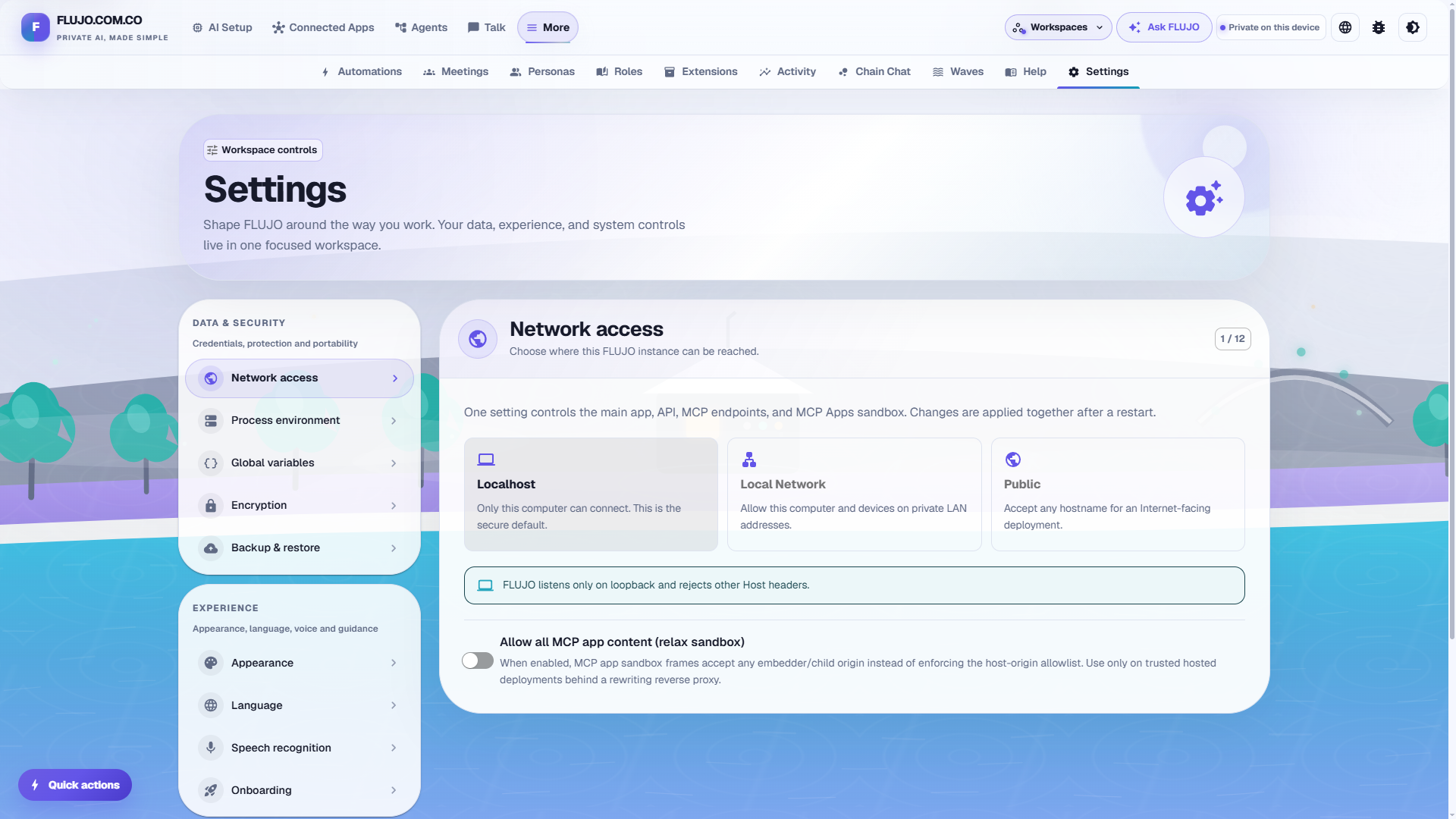
The default installation is for one trusted operator on localhost, without a sign-in screen or separate user accounts. Settings → Network access controls exposure, not authentication. Deliberate LAN or public exposure needs appropriate authenticating controls; public/shared hosting acceptance remains open. Workspace selection does not provide user isolation.
Network deployment guide · Privacy and costs · Security policy
Roadmap and maturity
| Capability | Current scope |
|---|---|
| Model connections, chat and visual agents | Available, including branching, loops, subflows, debugging and tool approvals |
| AI-assisted flow generation | Available; review the generated steps and tool access |
| MCP connections and interactive Apps | Available within the server's capabilities and documented protocol limits |
| Automation triggers | Available while the server runs; inspect results and recover failures |
| Workspaces and portable workers | Available within their data, authentication and credential-transfer boundaries |
| Meetings, Personas, Roles, persistent goals and Waves | Experimental; supervision and recovery can be needed |
| MCP Skills, resumable subflow sessions and selected generators | Opt-in experiments; see their feature flags and guides |
Project status · Release history · Persona acceptance criteria
Project vision — Soon(tm)
World: one avatar, one voice, and work that happens in the background. One virtual home to bring everything into one place.
Swarms: bring FLUJO into the cloud. One machine, ten machines, a hundred machines — with a long-term ambition of thousands of agents working together, using supported Claude/Codex subscription access and a copy of your local MCP configuration.
These are longer-term ambitions. Related directions include real-time voice, deeper roots/checkpoint support and builds suited to smaller devices. See the current project status or share a feature request.
Contributing and community
Contributions, bug reports and ideas are welcome. Read the contributor guide, pick a starter task, or open a pull request. Maintainers have a separate release procedure.
- GitHub issues · Discord
- Project author: mario-andreschak · LinkedIn
- Original product film and studio · Guided walkthrough
- Developer notes, response formatting and debugging options
FLUJO is MIT licensed, powered by PocketFlow, and built with Cline, Claude Code and a lot of love.
Bonus: “A sad song about MCP”
Star History
Ecosystem