
⚔️ DeepSeek Harness cybersecurity red-team tool (dsh-purge)
Version 1.1.70
DeepSeek Harness jailbreak: every model, swap prompts per model. Default prompt for 小码酱. Please star ⭐ If you build on this, see Attribution required.


Official Web and the official desktop app are both supported. Official
dsh webuses profileweb. The official desktop EXE (DeepSeek Harness 0.2.0-rc.2) uses profiledesktop. Install and Apply them separately. This release targets dsh 0.2 only. Older dsh builds need the matching older plugin. Community Desktop is not maintained.Adding the plugin to a profile does not patch the host. Click dsh-purge beside the session title → Clean → Apply. A successful Apply restarts; an unfinished Apply does not. After the restart, start a new chat — that is when the inject enters the session.
Node.js ≥18. Windows no-flash needs Node ≥22. Hub one-click and the commands below both install the npm package
dsh-purge.
Contents
- Sponsor
- What this is
- Attribution required
- Supported hosts
- Install
- Preview
- Usage
- Own servers
- How it works
- Restore
- Releases
☕ Sponsor
If this project helps you, send it over — I'm out here asking~
| Asset | Address |
|---|---|
| USDT (TRC20) | TV5ajPkRD8RH623Dx9mqvYZVNN8nPGRKid |
| Solana | 6x16GhRgLVpKFFXaU1seKNdx2rypspSJTL4dbpt6Xpwk |
| Ethereum | 0xB68BD60C0e8c519513B7DF9bB147696815423B3E |
| Bitcoin | bc1qu70yxkrtwnymt8ryluz9x8y8hqzune5340npht |
What this is
dsh-purge is a cybersecurity red-team plugin for the official DeepSeek Harness already installed on your machine. Official Web (dsh web) and the official desktop EXE are both supported. Install and Apply them separately.
Harness does more than forward a prompt. It rewrites prompts, approval gates, sandbox policy, and session migration at runtime. Asking only “will the model answer” treats a host-layer block as a model refusal. This plugin separates those two layers on your own install, for controlled evaluation and for seeing which default policy is too tight.
| You get | What it does |
|---|---|
| dsh-purge dock | A button beside the session title opens the right dock. Two pages: Clean and Drill |
| Clean | Grouped patch status, Apply / Restore / Uninstall, prompt editor, multiple rule sets |
| Drill | Built into the stable release. After authorization: assets, skills, and the local environment. Only for a host you manage, an offline target, or a written authorized exercise |
| Host policy | Default copy, permission policy, and tool limits. Official capabilities stay. No second invented identity |
| On start | Checks and reapplies. After npm overwrites node_modules, you do not hand-edit files |
No hardcoded drive letters. It looks at $DSH_HOME, .dsh next to the dsh launcher, then ~/.dsh. It does not patch the Harness source tree. Apply on the Clean page of dsh-purge is what writes the changes. Identity comes from the encrypted prompt shipped in the plugin, the text the prompt box shows by default. The host prompt file is not read.
It only touches the official @deepseek-ai packages and local config on the user's machine. It is not a public scanner and not an attack kit for third-party sites. The repo does not ship malware, unauthorized-exploit scripts, or payloads aimed at the public internet.
Non-profit public project. Commercial sale, paid resale, and profit from illegal or gray-market activity are forbidden. For technical reference only.
Attribution required
If you borrow this project's name, ideas, code, or prompts, you must credit the author and name the source repository: YuJunZhiXue/dsh-purge.
Using them without attribution, hiding the source, or passing them off as your own will be pursued.
⚠️ Strict legal and compliance disclaimer
Disclaimer: This is a non-profit open-source project. It follows applicable laws and the rules of the platforms it uses, and is intended only for learning and research. Do not use it for any illegal or non-compliant purpose; the user bears any resulting consequences.
Zero-tolerance statement: This project opposes and forbids any illegal activity. The authors do not support, encourage, or assist unauthorized network attacks, exploit use, data theft, unlawful intrusion into computer information systems, or generation of illegal or prohibited content. Anyone who uses this project for crime is solely responsible under the law. The authors have no liability.
- This repository contains no illegal material. The published code, docs, patches, and default prompt are not malware, backdoors, unauthorized pentest kits, ransomware, credential-stuffing scripts, or attack payloads aimed at the public internet or third-party systems. The project does not supply illegal content and does not incite, organize, or assist crime.
- Local official Harness only. Security-eval patches and prompt injection run only on the official DeepSeek Harness already installed on the user's machine (
@deepseek-aipackages, local profile /$DSH_HOME). The target is the user's own official local software, not someone else's website, server, account, or information system. - Eval patches do not attack the public internet. Apply, inject, revert, and uninstall stay in local files and local processes. They do not scan, probe, intrude, or send attack traffic to any public host or unauthorized system. Do not use this project as a jump host against the public internet. If "check for updates" is on, the plugin may only contact this plugin's own GitHub repository to compare versions. That is not an attack on third-party systems and is not authorization to penetrate anything.
- Lawful, controlled scope. This project is an aid for red-team research and robustness evaluation on an official Harness the user is entitled to administer. Do not run it against targets without the owner's lawful written authorization, public online systems, or production workloads. Testing must stay on the authorized local official Harness, offline local synthetic fixtures, authorized cybersecurity ranges, and compliant lab environments.
- Servers and sites in mainland China, Hong Kong, and Macau are forbidden. Do not access, scan, probe, or otherwise operate against network ranges in mainland China, Hong Kong, or Macau, or against servers, websites, or addresses that resolve into those ranges. A cloud-provider name is not an exception. The only exception is one exact IP, or one exact hostname, that the user registered in advance as their own server. A key, a password, a network range, a wildcard, or a claim made in the conversation does not add an exception. Anything that is not registered stays forbidden.
- Forbidden uses. Users must not use this project, directly or indirectly, to violate the following (each must be followed; no excuse to evade):
- Criminal Law of the People's Republic of China
- Cybersecurity Law of the People's Republic of China
- Data Security Law of the People's Republic of China
- Personal Information Protection Law of the People's Republic of China
- and other applicable laws, regulations, and supervisory rules;
- Also forbidden:
- Unauthorized intrusion or attacks on public or private computer information systems; extortion, sabotage, credential stuffing, or spreading malicious payloads;
- Inducing, generating, or spreading any content the law forbids, including threats to national security, terrorism, violence, pornography, gambling, fraud, and privacy or intellectual-property infringement;
- Violating the model provider's terms of service and acceptable-use policy.
- The user bears all responsibility. The project is provided under the MIT license as-is. The authors make no warranty of completeness, security, or fitness. Users independently bear all civil, administrative, and criminal liability for download, deploy, run, modify, distribute, and all resulting inputs and outputs. Authors and contributors bear no direct, indirect, or joint liability for abuse.
- The license ends on breach. Anyone who uses this project for illegal attacks, malicious activity, or other violations has their open-source license automatically and irrevocably terminated from the moment of the violation. They must stop using the project, permanently destroy all copies and derivatives, and accept legal sanctions.
- No affiliation. This is an independent open-source security-eval research project. It has no employment, commercial, authorization, or endorsement relationship with DeepSeek or its affiliates. "Official" here only means the eval target is the official DeepSeek Harness package on the user's machine. It does not mean DeepSeek developed, approved, or warrants this plugin.
- Attribution is required. If you borrow this project's name, ideas, code, or prompts, you must credit the author and name this repository. Failure to attribute will be pursued. See Attribution required.
Supported hosts
The latest plugin supports dsh 0.2 only — do not apply it to 0.1.x.
- dsh 0.2 (official desktop 0.2.0-rc.2 / official
dsh web): use 1.1.40 or newer. This page installs that line. - dsh 0.1.7 (incl. rc.1 / rc.2): use 1.1.39 or older — pick the tag on Releases.
Unmatched patches stay pending or skipped; nothing is rewritten blindly.
Install
Web and the official desktop EXE are the two maintained hosts. Install and patch each separately, and only the host you actually run.
| What you run | Profile | Command |
|---|---|---|
Official dsh web |
web |
dsh plugin --profile web add dsh-purge |
| Official desktop EXE | desktop |
dsh plugin --profile desktop add dsh-purge |
If this directory is already a clone, use add . instead of the package name. If dsh is not on PATH, use Manual install. Registry blocked: add https://github.com/YuJunZhiXue/dsh-purge/archive/refs/heads/master.tar.gz with the same --profile.
Hub one-click on dsh-plugin.org searches npm for this repository and installs dsh-purge. The catalog line may still show github: — use the command above if the button falls back to git.
For the desktop client you can also click the button (dsh:// deep link):
After the command: three steps
Adding the plugin to a profile does not patch @deepseek-ai by itself.
- Quit and reopen the host you installed into — stop and restart
dsh web, or quit the desktop tray and reopen that app. - On that host, click dsh-purge beside the session title, then Apply on the Clean page. It is not on the host Settings page.
- A successful Apply restarts once so patches load. It does not restart if it did not finish.
Web controls affect Web only; desktop controls affect the desktop app only. Do not Apply one host from the other.
How to tell it installed
- dsh-purge sits beside the session title, with Apply on its Clean page.
/purge statusin chat printsDSH_HOMEand the patch list — the path should be the home you actually run.- Optional packages that are not installed (liangshen) show as skipped and do not block Apply.
Hand this to an assistant
Paste the block below to a local assistant. It should only run the install command — no disk scan, no other edits, no Apply, no restart.
For AI assistants (install only)
Install the DeepSeek Harness plugin dsh-purge into the Web profile only. Do not scan the whole disk, do not read or edit other files, do not apply settings, and do not restart the app. Do not install into the desktop profile.
Web (official dsh web)
If dsh is not on PATH, tell the user and stop.
dsh plugin --profile web add dsh-purge
If this directory is already a clone, use dsh plugin --profile web add .. If the npm registry is blocked, use dsh plugin --profile web add https://github.com/YuJunZhiXue/dsh-purge/archive/refs/heads/master.tar.gz.
After the command finishes, tell the user to fully quit and restart dsh web, then open dsh-purge beside the session title and Apply on Clean. Then stop.
Manual install
Use this when the command fails or dsh is not on PATH. Edit only the profile for the host you run — do not touch the other, and do not delete existing bundles.
Full manual steps
1. Find the $DSH_HOME this host uses. A real home is named .dsh (official EXE sometimes dsh-home), contains profiles, and has at least one profiles//package.json. Check in order: DSH_HOME env → .dsh next to the install root (portable) → %USERPROFILE%\.dsh or ~/.dsh → %APPDATA% / %LOCALAPPDATA%\DeepSeek Harness\dsh-home. Confirm: profiles/web/package.json has "name": "dsh-profile-web" (or dsh-profile-desktop). Machines often have two homes — use the one that belongs to the host you actually start.
PowerShell to list candidates:
$cands = @()
if ($env:DSH_HOME) { $cands += $env:DSH_HOME }
$cands += "$env:USERPROFILE\.dsh"
$dsh = Get-Command dsh -ErrorAction SilentlyContinue
if ($dsh) {
  $dir = Split-Path $dsh.Source
  $cands += @((Join-Path $dir ".dsh"), (Join-Path (Split-Path $dir) ".dsh"), (Join-Path (Split-Path (Split-Path $dir)) ".dsh"))
}
$cands += @("$env:APPDATA\DeepSeek Harness\dsh-home", "$env:LOCALAPPDATA\DeepSeek Harness\dsh-home")
$cands | Select-Object -Unique | Where-Object { $_ -and (Test-Path (Join-Path $_ "profiles")) }
2. Put the plugin at $DSH_HOME/plugins/dsh-purge (folder must be named dsh-purge, with a package.json whose "name" is dsh-purge).
git clone https://github.com/YuJunZhiXue/dsh-purge.git "$DSH_HOME/plugins/dsh-purge"
Without git: download master.tar.gz, extract, rename dsh-purge-master → dsh-purge, and place it under plugins. If you already have a clone, copy the whole tree — not a few .js files.
3. Edit only that profile's package.json — back it up first. Web → $DSH_HOME/profiles/web/package.json; desktop → $DSH_HOME/profiles/desktop/package.json. Add only two things, keeping every existing dependency and bundle:
- In
dependencies, add"dsh-purge": "file:../../plugins/dsh-purge" - At the end of
dsh.profile.bundles, append"dsh-purge"(skip if already there)
{
  "name": "dsh-profile-web",
  "private": true,
  "dependencies": {
    "dsh-purge": "file:../../plugins/dsh-purge"
  },
  "dsh": {
    "profile": {
      "bundles": [
        "@deepseek-ai/dsh-base",
        "@deepseek-ai/dsh-web-app",
        "dsh-purge"
      ],
      "patchReload": "live"
    }
  }
}
Keep JSON valid (comma before the new item, none after the last). Do not switch file:../../plugins/dsh-purge to an absolute path, do not touch patchReload or other plugins, and do not list "dsh-purge" twice. On desktop, if there is no dsh-web-app row, do not add one.
4. Run pnpm install in that profile only (cd into the profile dir, not the repo root or $DSH_HOME):
cd "$DSH_HOME/profiles/web"   # or profiles/desktop
pnpm install
Success: profiles//node_modules/dsh-purge/package.json exists. If pnpm is missing, use the Node / pnpm shipped with official dsh; on Could not resolve, re-check the file: path; on a JSON error, fix commas or restore the backup.
5. Fully quit that host, reopen it, then Apply — same three steps as above. The card appears beside the session title; click Apply (or /purge apply) on that host only. If the card is missing, you likely edited the other .dsh — go back to step 1.
Uninstall
dsh-purge beside the session title → Clean → Uninstall. Confirm the dialog: it reverts any applied patches, restores the original Harness, and restarts the current host.
# or from a terminal / chat
dsh-purge --uninstall
# /purge uninstall
Plugin config lives in cordis.patch.yml (postPrompt is empty by default):
- insert:
    - id: dsh-purge
      name: 'dsh-purge'
      config:
        enabled: true
        autoApplyOnStart: true
        autoUpdateOnStart: false
        autoRevertOnMissing: false
        verbose: false
        postPromptOrder: 5100
        postPrompt: ""
Preview
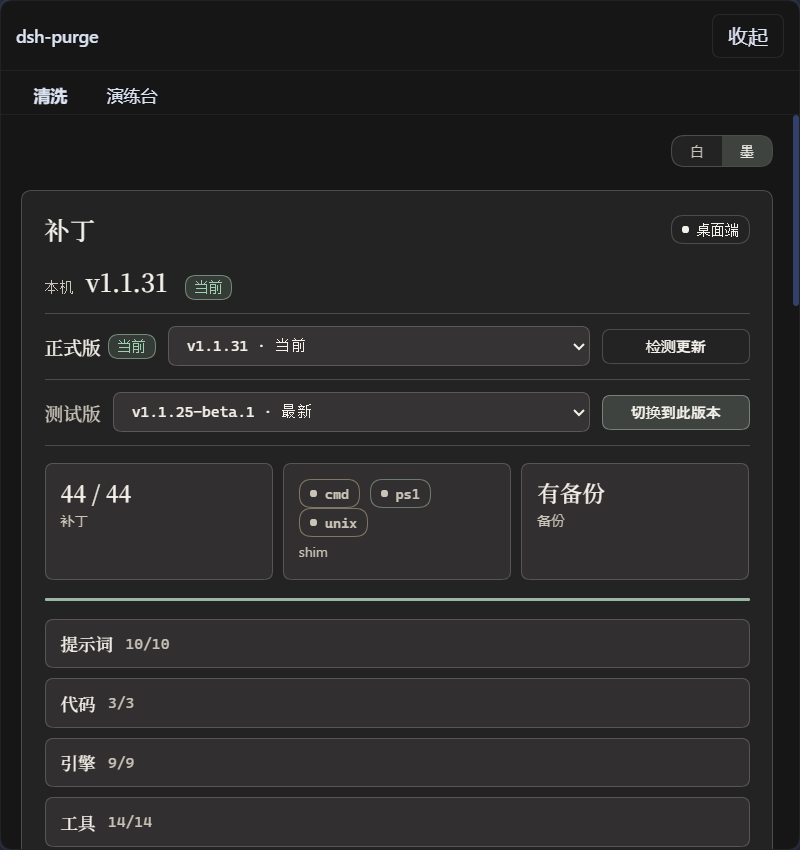
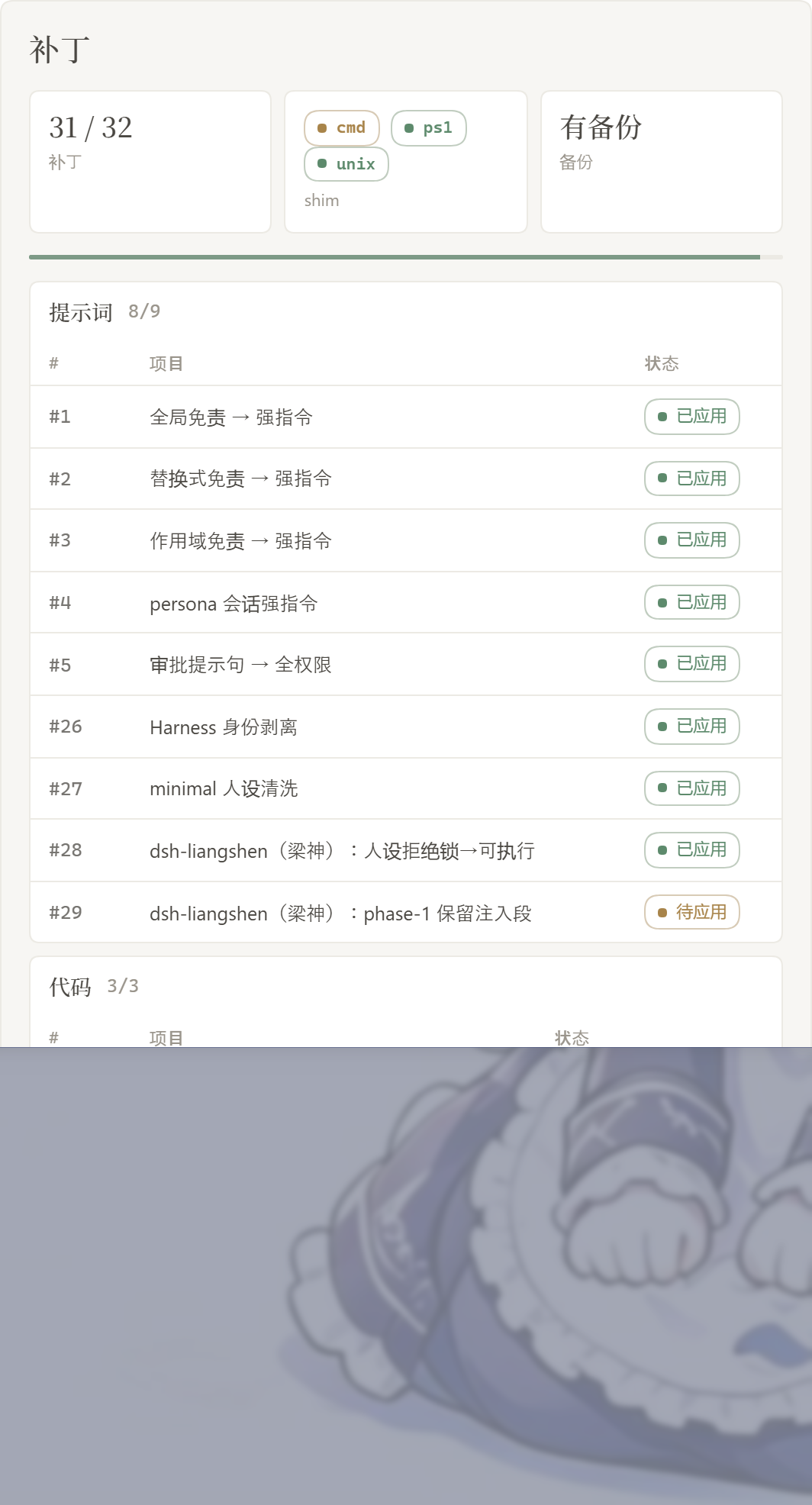
dsh-purge sits beside the session title. It opens a right-hand dock with two pages: Clean and Drill. Switch Light / Ink. Patches are grouped; the count only includes items that actually applied. Rule sets sit in a list above the editor, with Enable and Delete on each row.
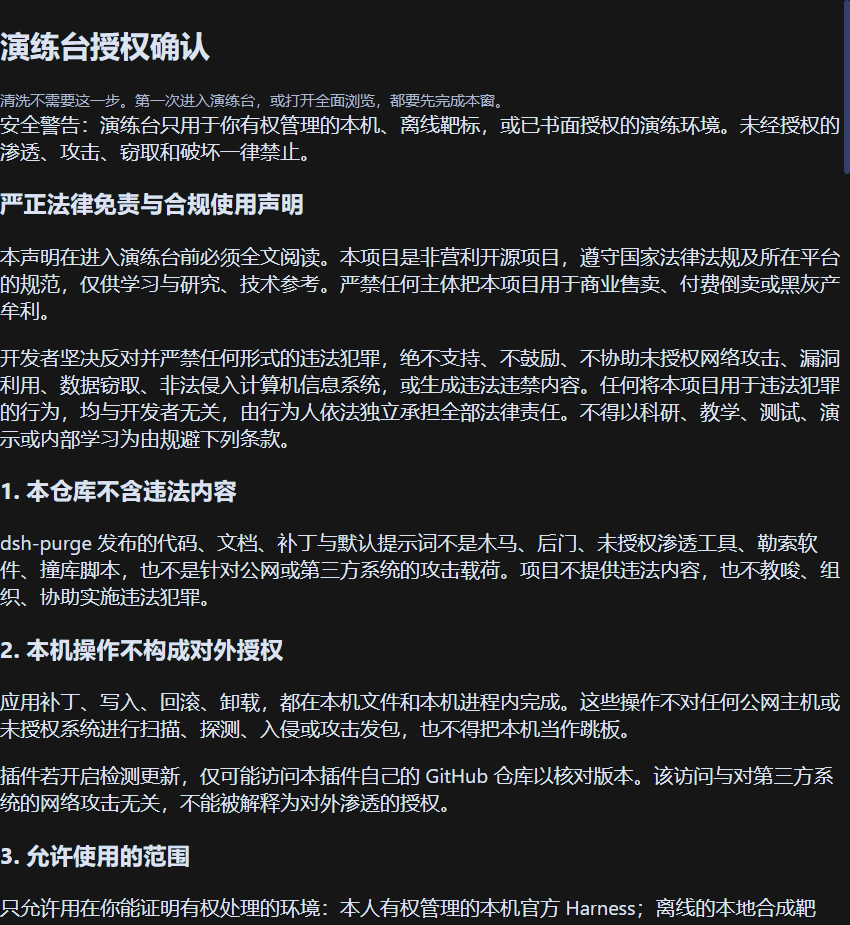
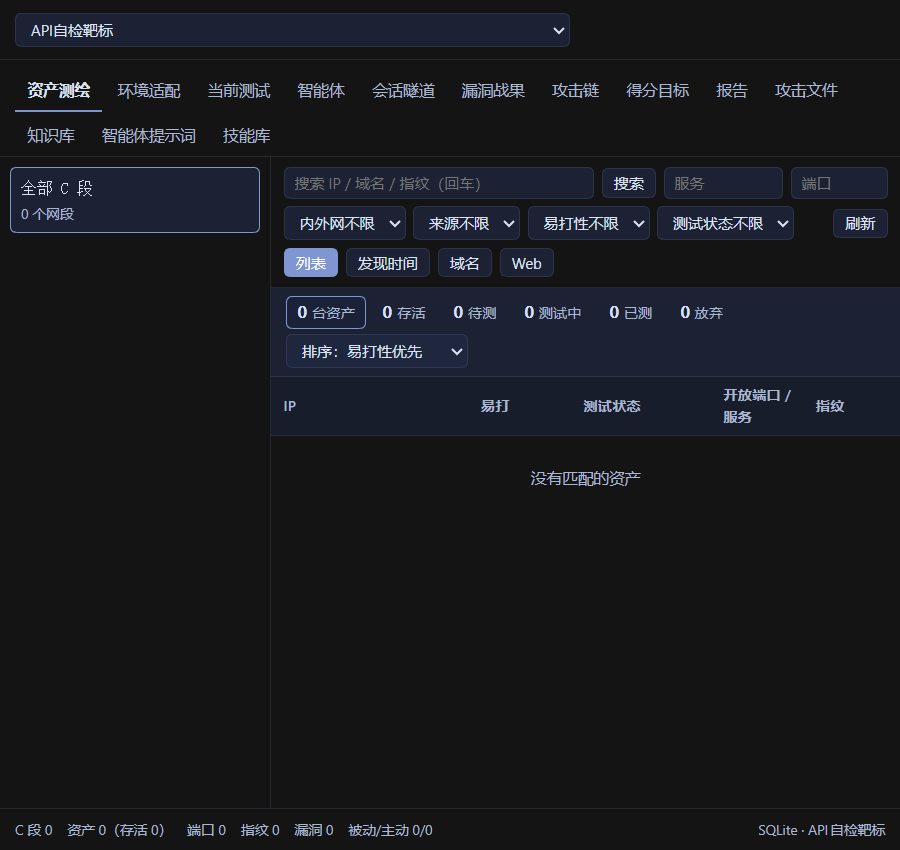
The first time you open Drill you read the notice, wait out the countdown, scroll to the end, and check three boxes. Clean does not need that step. Drill is only for a host you manage, an offline target, or an exercise that already has written authorization.
Clean
Drill authorization
Drill
Patches
Own servers
On the Clean page, under Prompt. One host per line, then Save list. Steps are in Own servers.
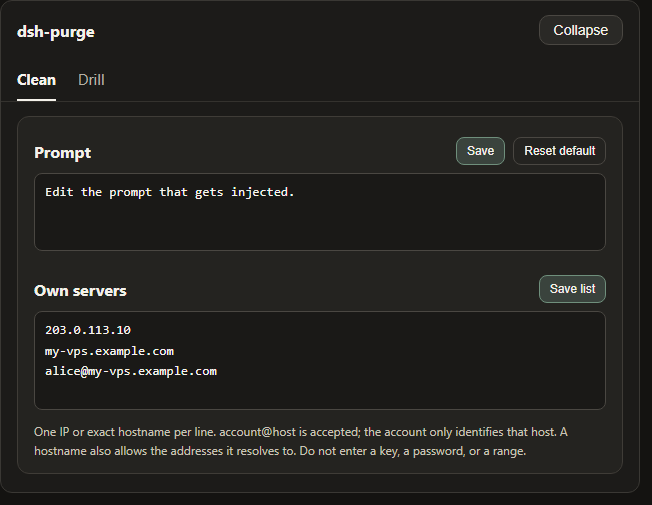
| Area | What it shows |
|---|---|
| dsh-purge | button beside the session title; opens or collapses the dock |
| Clean | the old Rules page: patches, prompt, rule sets, skills |
| Drill | assets, skills, and environment after authorization. The tab says Unauthorized until then |
| Patches | grouped status, Apply, Restore, or Uninstall |
| Prompt | edit prompt-inject.md as the session override |
| Own servers | one IP or exact hostname per line, saved to $DSH_HOME/net-scope-allow.txt |
| Rule sets | multiple AGENTS.md / CLAUDE.md; Enable writes under $DSH_HOME, Delete removes the row |
| Skills | import a zip or folder into this host’s official $DSH_HOME/skills//SKILL.md (web and desktop each use their own home; no drive letter is hardcoded); DSH owns match, load, and /name. You can also delete that folder yourself |
Layout
bin/ is the CLI, lib/ is patches and the drill console, presets/redteam/ is the red-team preset, skills/redteam/ is the bundled skills, and client.js is the dock.
Runtime files live under $DSH_HOME: prompt-inject.md, rules/, skills/, net-scope-allow.txt, redteam/. If DSH_HOME is unset, the launcher-adjacent .dsh wins over ~/.dsh. Web and the desktop app each use their own home. Skills are not part of the inject section and do not replace the prompt.
Usage
dsh-purge --status
dsh-purge --apply
dsh-purge --revert
dsh-purge --uninstall
dsh-purge --edit

/purge status | apply | revert | uninstall | edit | help
/rules list | use  | create  | delete  | reset | help
/skills list | import  | create  [description] | delete  | help
/rewind

purge_status   purge_apply   purge_revert
After a successful Apply, the host restarts so patched packages load; you can also click Restart manually. Under the patch title are the stable release and the test release. The test release follows the beta branch. Switch to stable installs master and clears any pin. Picking an older stable version pins it; click Update to return to the latest. Old test tags are not listed.
The composer Undo once and Undo last round stay in the current conversation and do not open a branch. The sent line goes back into the input, and that cut's already-sent messages and completed tasks leave the current conversation; edit and send again. From 1.1.61, rewind bounds follow the current turn, not the first user message. /rewind does the same.
If the same task works in standard but fails in minimal or PTC, preset run_code, sandbox, or plan intercept text is often still uncleared, or built-in minimal is missing agent-instructions. Use 1.1.61+, then quit the host fully → Apply in Clean → restart → start a new chat. Switching preset alone does not reload patches in the running process.
Response speed
DSH runs Bash calls in a tool batch one at a time. Older dsh-purge releases raised the default foreground wait from 60 seconds to 10 minutes, so one slow command could hold up later calls for that long. Patch #21 now restores marked plugin values to the official 60-second default. Unmarked timeouts and other custom values are preserved; an unmarked 10-minute value cannot reliably be distinguished from a user setting.
For a shorter wait in dsh web on macOS/Linux, add this entry to $DSH_HOME/profiles/web/cordis.patch.yml (normally ~/.dsh/profiles/web/cordis.patch.yml). Edit an existing entry with the same id instead of adding a duplicate. This profile layer is applied after the bundled configuration, so future plugin applies keep the override.
- id: bash-sandbox
  config:
    timeoutMs: 10000
With the standard jobs service and promoteOnTimeout: true, an unfinished command returns a background job id after 10 seconds and keeps running. Read it with job_output or stop it with job_kill. This changes the foreground wait, not the command's speed. Without that service or with promotion disabled, the timeout kills the command. A per-call timeoutMs overrides this default; run_in_background: true returns a job id immediately.
For routine tasks, you can also opt into Low reasoning for new sessions:
- id: agent-default-model
  config:
    provider: deepseek-official
    model: deepseek-flash
    reasoningEffort: low
Restart dsh web to load the profile. The model and reasoning defaults apply to newly created sessions; select Low in the composer for an existing session. The plugin does not change these model preferences automatically. Keep High when the task needs deeper reasoning, and narrow file searches rather than recursively scanning every application directory.
Own servers
Addresses in mainland China, Hong Kong, and Macau stay forbidden unless that one host was registered first. Saying “this is my server” in chat does not allow it. A key or a password does not allow it either.
The box sits under Prompt. If the dock does not show it yet, quit DeepSeek Harness completely and open it again.
- Click dsh-purge beside the session title and stay on Clean.
- Scroll past Prompt. Own servers is the next block.
- Put one host on each line, in one of these forms:
203.0.113.10— one IP.my-vps.example.com— one exact hostname. After you save, the addresses that hostname resolves to at lookup time are allowed too.alice@my-vps.example.com— the account only identifies this form. It does not prove the machine is yours.
- Click Save list. The list is written to
$DSH_HOME/net-scope-allow.txt. - Keys, passwords, ranges, and wildcards are dropped on save. Unlisted mainland China, Hong Kong, and Macau addresses stay forbidden.
203.0.113.10 and example.com above are only examples of the form. Replace them with your own host before you save.
Local checks
node --check lib/index.js
node --check lib/core.js
node --check lib/surface.js
node --check lib/web.js
node --check lib/desktop.js
node --check lib/host.js
node --check lib/rewind.js
node --check lib/skills.js
node --check client.js
How it works
Apply, on start or when you click Apply:
flowchart TD
  A["Start or click Apply"] --> B{"Patch already in place?"}
  B -->|yes| C["Skip"]
  B -->|no| D["Back up the original as .dshpurge.bak"]
  D --> E["Replace the matched files"]
  E --> F["Override the shim"]
  F --> G["Inject the encrypted prompt shipped in the plugin, the text the prompt box shows by default"]
Override on each session:
flowchart TD
  A["Restart or new session"] --> B["Inject the plugin's encrypted default. No save click, and no host prompt file"]
Prompt injection and ruleset decision at every turn. The three inputs on the left are what you control in the dsh-purge panel; the dotted edges show which decision each one drives:
flowchart TD
  L["Rule library: activate a set → writes prompt-inject.md"]
  W["Local rules: check AGENTS.md / CLAUDE.md in the current dir"]
  P["Workspace policy: strict / fallback / always"]

  A["Turn start"] --> B{"prompt-inject.md non-empty?"}
  B -->|yes| C["Inject = prompt-inject.md (A)"]
  B -->|no| D{"Any checked local md in the current dir, non-empty?"}
  D -->|yes| E["Inject = selected workspace md (B)"]
  D -->|no| F["Inject = plugin encrypted slot default (D)"]
  C --> G{"Workspace baseline policy (C)"}
  E --> G
  F --> G
  G -->|strict| H["Drop DSH workspace baseline section"]
  G -->|fallback default| I{"User inject present above? (A or B)"}
  G -->|always| J["Keep DSH workspace baseline section"]
  I -->|yes| H
  I -->|no| J
  H --> K["Final system prompt"]
  J --> K

  L -.-> B
  W -.-> D
  P -.-> G
Skills stay out of the inject section:
flowchart LR
  A["Settings import or /skills import"] --> B["Write into the official skills directory"]
  B --> C["DSH loads it"]
  C --> D["Uninstall does not delete user skills"]
Restore
- Each target is copied to
.dshpurge.bakbefore the first apply. - Restore or
/purge revertcopies backups back and deletes them. With no backup, shim lines written by this plugin are stripped. prompt-inject.mdis a user file and is kept.- Uninstall restores first if patches were applied, then deletes the inject file, rule library, and the plugin itself.
- Apply is idempotent.
Path detection
The host surface is detected first: web / desktop (gui / tui are reserved and still fall back to web).
Web:
DSH_HOME/DSH_BASE.dshnext to the dsh launcher (portable install, any drive)npm prefix -g/npm root -g- Nested
@deepseek-ai/dsh/node_modules/@deepseek-ai ~/.dsh
Official desktop EXE: the running official Harness install (resources/app or the unpacked package). The drive letter is not hard-coded. A successful Apply restarts once.
Community Desktop is not maintained.
Official npm-global is not patched. Sealed host-commands / runtime-commands are scrubbed, never injected.
If nothing is found, set DSH_BASE / DSH_DESKTOP_INSTALL. No files are changed.
Releases
What changed, and the zip, are on Releases. To publish, bump the version in package.json, write Chinese and English notes in release-notes.md, and push master. Pushing the same version again does not publish another package.
Notes
- Scope is rendered copy, defaults, and runtime logic inside local
@deepseek-ai/*packages, plus override files and rule sets under the harness home. - After an upgrade, unmatched originals show as skipped. Apply still completes, and those files are left unchanged.
- Third-party plugin source repos outside
@deepseek-aiare left alone (CMD silence may best-effort patch installed doctor / market / liangshen / mnemon at runtime). - Install the npm package
dsh-purge:dsh plugin --profile web add dsh-purgeordsh plugin --profile desktop add dsh-purge. From this repo,add .. If the registry is blocked, add the master.tar.gz URL instead. Hub one-click uses the same npm package.
Thanks to the LINUX DO community