English · 中文
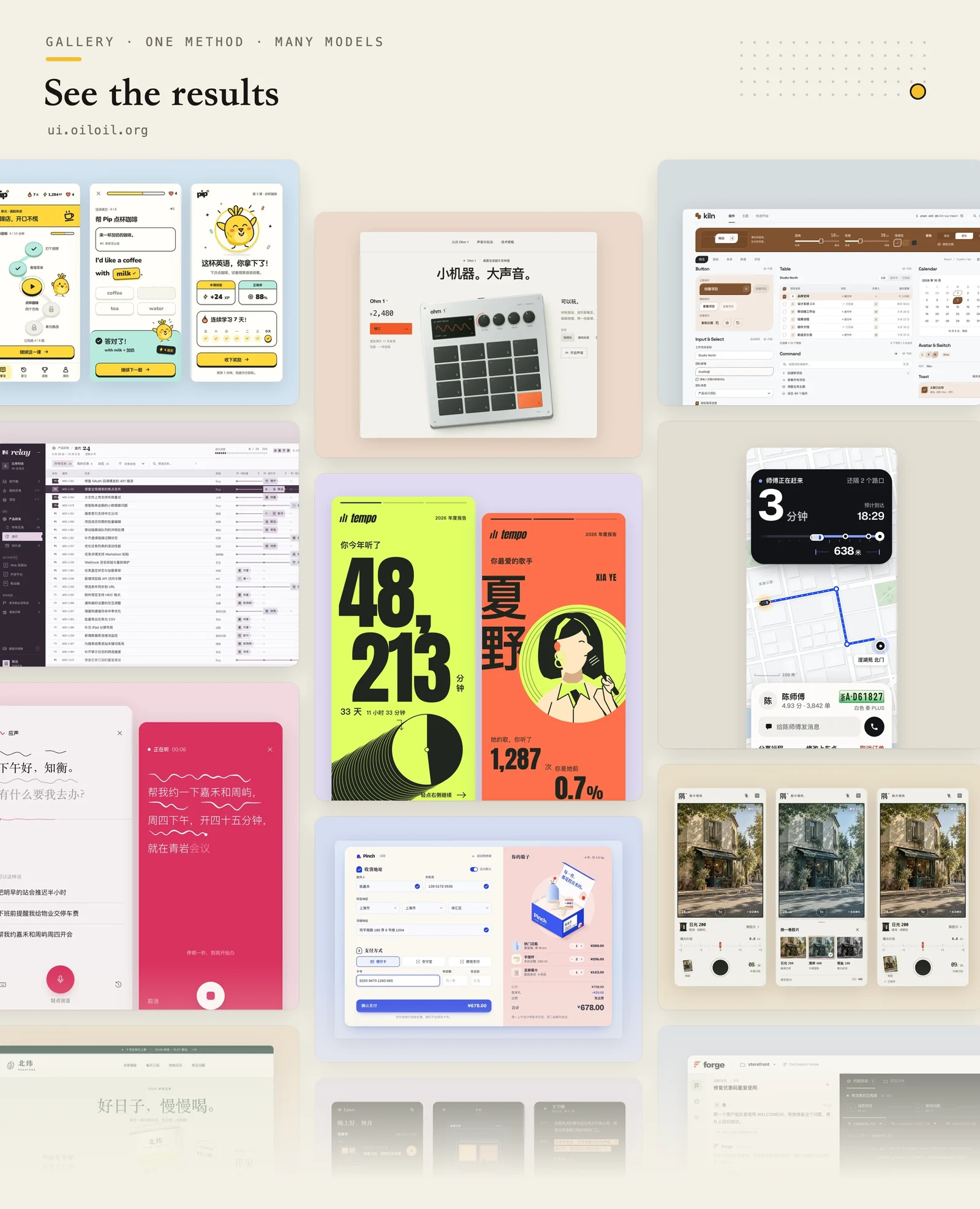
Oil UI is an interface design skill for AI agents. It explores a few genuinely different design directions side by side, lets you choose one, then refines it against real screenshots. It works for websites, apps, dashboards, and components. See more designs at ui.oiloil.org.
How it designs
- Understand what the product is. Before drawing anything, it names the product category, finds two or three peers with the most distinctive styles, and looks at what they do and why. Then it decides what to keep and what to change.
- Turn “premium” and “clean” into real decisions. Everyone uses these words, but they don't tell you what to put on the screen. It first sets the tone from the subject, audience, and brand voice, such as lively or calm, polished or raw, dense or airy. Then it turns that tone into visible choices: which typefaces, how much white space, and how much of the page uses color.
- Start each direction from something concrete. That could be a material in its setting, a scene, a character, or the visual language of another field. Ideas come from the product itself, not from adjectives like “minimal” or “bold.”
- Decide who the first screen is for. On pages where people browse, shop, or get work done, the first screen should be the content itself. Only pages meant to persuade need a designed opening layout, settled before the copy is written.
- Make the directions truly different. Of layout, typography, color, and key imagery, any two directions may share at most one. Once the previews exist, it puts them side by side and squints at the light and dark shapes of each first screen. If two look alike, it changes the layout instead of just swapping colors.
- Leave one moment people remember. Instead of pushing every part of the page, it makes one or two details exceptional, such as the response to a tap, a successful payment, AI at work, or a 404 page. Everything else stays quiet.
- You decide what looks right. The previews go on one comparison page. You pick one and say what you like and dislike, and it tightens the design around your feedback before going further.
- Trust the real screen. When a page is done, it opens it at desktop and mobile sizes and checks screenshots. You can also bring in a reviewer who hasn't seen the work in progress. Last comes a round of subtraction: one focal point per page, and no copy, lines, or boxes that don't help you understand it.
For more usable interfaces, existing project redesigns, or effects such as light trails and dot patterns, see Oil UI Pro. The differences are listed below.
Installation
Send this to an agent that can install skills:
Install this skill for me: https://github.com/oil-oil/oil-ui
Or run this in your terminal:
npx skills add oil-oil/oil-ui
It's ready to use right after installation, with nothing to configure. When a new version is out, your agent mentions it at the end of a reply; ask it to update whenever you like. If you already have Oil UI Pro, you don't need the open-source version. Installing both makes them compete for the same requests.
Usage
Tell your agent what you need, for example:
- “Use oil-ui to explore a few design directions for this course booking product and build pages I can preview.”
- “Create three designs with different typography, colors, and compositions. Put them on a comparison page so I can choose.”
- “Polish this page using the project’s existing design guidelines.”
- “Review this homepage and explain what to change and how. Leave the files untouched.”
- “Recreate this page from the screenshot and add a mobile layout too.”
Share any brand assets, screenshots, or existing project you have. It can start without references and only asks you questions when the deliverable is unclear.
Built-in style comparison page
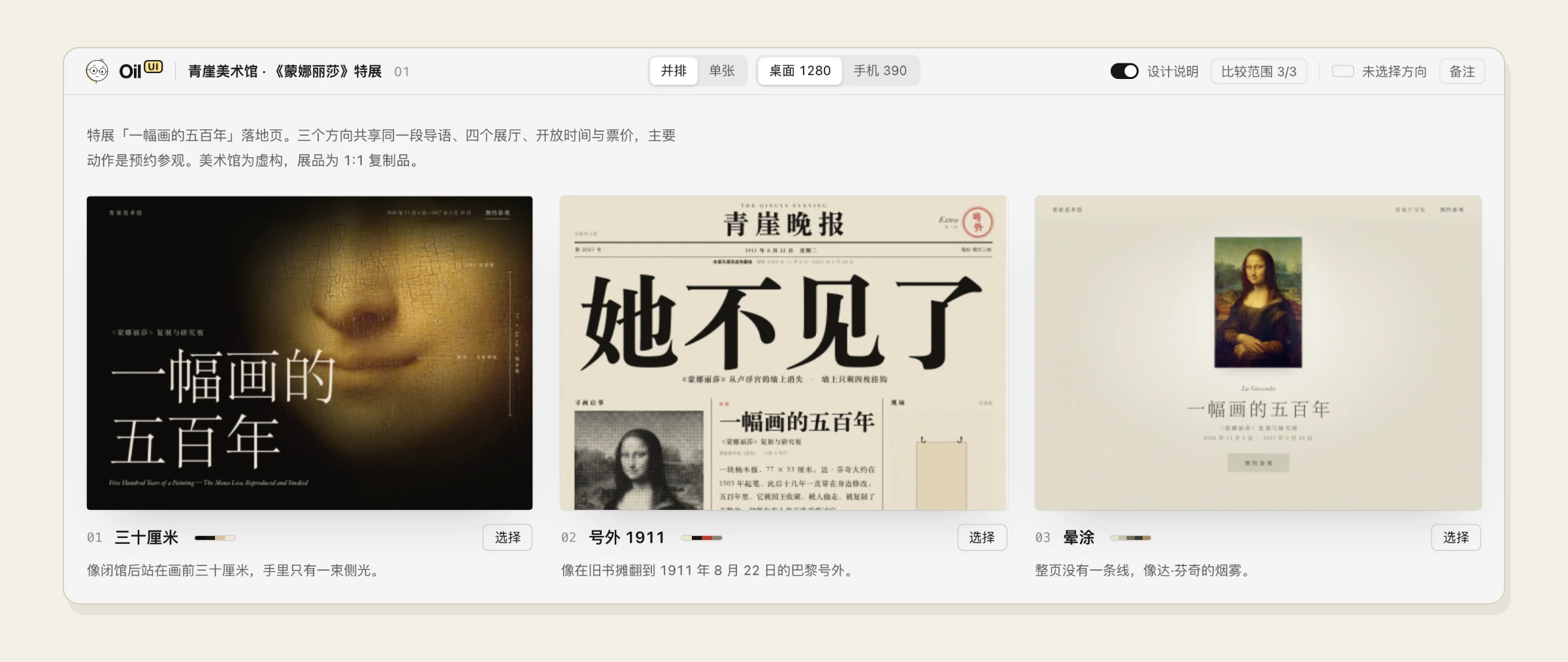
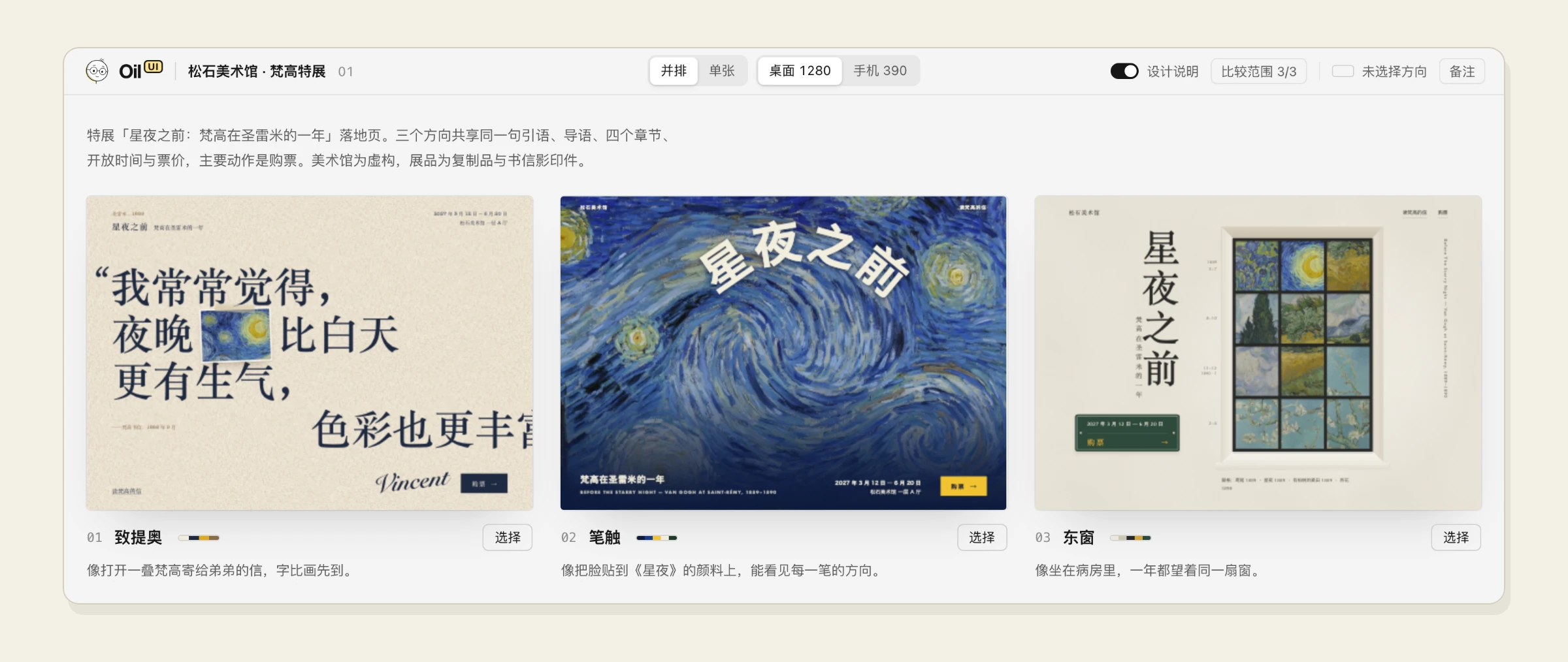
When you want to compare designs, it puts them side by side on one page. They can be HTML files, images, or running development pages, and the current version can go first as a baseline. You can switch between desktop and mobile sizes, open each one at actual size, and browse with the arrow keys. Click “Select” on the one you like, paste the copied sentence into your agent, and it carries on from there.
Open source and Pro
The open-source version takes a new page from a blank start to a good-looking design. Pro builds on that: it makes interfaces easier to use, improves existing projects, and raises the quality bar with stricter review and polishing.
| Oil UI (open source) | Oil UI Pro | |
|---|---|---|
| Design direction: product category, tone, distinct directions, comparison page | ✓ | ✓ |
| Visuals: hierarchy, typography, color, spacing, imagery, and motion | ✓ | ✓ |
| Memorable moments and scroll storytelling (parallax, continuous shots) | ✓ | ✓ |
| Screenshot recreation | ✓ | ✓ |
| Pacing, feel, generated assets, and real-time 3D for mini-games | ✓ | ✓ |
| Independent review | Scored, with issues listed | Repeated review and revision aiming for 9/10; checks whether directions overlap; completes real tasks on the page |
| Polish: checks for AI design defaults, a detail checklist, and how to simplify | ✓ | |
| Usability: interactions and states, forms, dialogs and popovers, desktop and mobile layouts | ✓ | |
| Dashboards and tools: workspace layouts chosen for the product, with one style throughout | ✓ | |
| Existing projects: separate approaches for a UI refresh, a flow fix, and a new feature | Tells you which one you need | ✓ |
| Polish a single component to the extreme | ✓ | |
| 19 card prototypes with code and spatial expansion containers | ✓ | |
| Effects such as light trails, dot patterns, and flowing gradients | ✓ | |
| Scene layouts, visuals, and state checks for mini-games | ✓ |
Oil UI Pro costs $9.99: a one-time purchase with lifetime updates. Purchase it at ui.oiloil.org/pro.
Version checks
Each time it is used, the Skill checks for a newer version, going online at most once every 10 minutes. It only reads the public version list at ui.oiloil.org and uploads nothing from your project. By default it only tells you about an update; it downloads and replaces nothing unless you explicitly ask it to update. Results are cached in ~/.local/state/oil/ (or XDG_STATE_HOME when set; %LOCALAPPDATA%\oil\ on Windows). It needs Python 3. Set OIL_NO_UPDATE_CHECK=1 to turn it off.
Use with
- oil-motion: Turn generated videos or frame sequences into web animation controlled by scrolling or dragging, such as product teardowns or camera fly-throughs. Use it for a striking opening animation.
- oil-tone: Rewrites headings, descriptions and intro copy so they read naturally and clearly, in Chinese or English. Use it when the copy feels machine-written or awkward.